Educator Productivity

Using the Open-In App

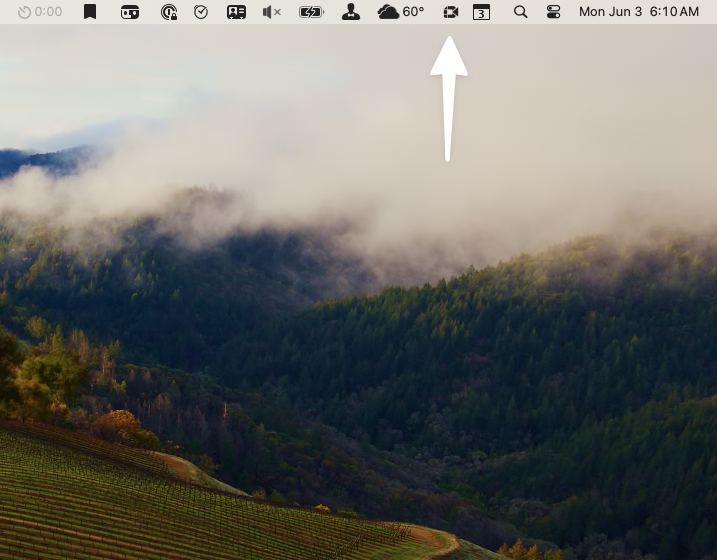
I use the app Fantastical as my primary calendar app, which has a feature where it will put an icon in your Mac’s menu bar with the meeting link for your next online meeting, whether that meeting uses Google Meet, Zoom, or another service. You simply click the icon in the menu bar on your Mac to join the meeting, rather than opening your calendar to find the link.

With most of my meetings taking place in Google Meet, I prefer to use Google’s Chrome browser rather than Safari, which is normally my default browser for other tasks. I have found that Chrome performs better with Google Meet, I am assuming because Google optimizes for Chrome. Since I prefer to keep Safari as my default browser, I previously would manually copy the links to Chrome in order to open my meetings in that browser.

This icon opens my next meeting in Google Meet.

In addition, when meeting via Zoom, the meeting links would send me to a Safari window that asked for permission to open the link in Zoom, rather than directly opening the Zoom app.

The app OpenIn solved both of these problems for me. Once it is set up, the app opens links in your preferred browser automatically based on your preferences. To get started, you set OpenIn as your default browser. In the app’s settings, you identify the types of links for which you want a specific browser to open, and then specify which browser or app should handle those links. For example, any Google Meet link that I click on will open in Chrome rather than Safari. By providing OpenIn with the relevant portion of the link, in this example any links with “meet.google.com,” you can then indicate which browser should be used to open each type of link.

The app OpenIn is available in Setapp if you are a subscriber, or you can purchase it in the Mac app store.

My Shutdown Routine

I wrote a post about my startup routine earlier, and would also like to share my shutdown routine. While I use my startup routine to orient myself for the day and get started, I use my shutdown routine to ensure that I capture tasks from my notes taken earlier in the day and that I am able to focus fully on personal projects and my family in the evening. Like my startup routine, I set up my shutdown routine as a daily repeating task in Things, with each of the steps listed below as subtasks. I complete my shutdown routine before heading home from work each day, as well as at the end of the day on weekends, although my shutdown is abbreviated on the weekend since I am not closing out work tasks.

My shutdown routine task in Things, which repeats daily.

Here is my shutdown routine:

  1. Review my calendar – this gives me time to review the current day’s meetings and activities, and to preview the next day’s schedule
  2. Set Up Schedule for Next Day – I set up my schedule for the following day, essentially a daily agenda, including the meetings that are already scheduled. For the time between meetings, I indicate either “Work Session” or list a specific project or task I would like to focus on. This schedule goes in Things in the notes field of a project called “Daily Planning – Weekdays.” For those of you familiar with block scheduling, this is similar to that approach.
  3. Save Today’s Schedule to DEVONthink – I keep each day’s schedule as a Markdown file in DEVONthink in case I need to look back at a certain day later, or if I want to review my daily schedules as a reflective activity in the future. I use the app PopClip for this, which allows me to simply highlight the text and select DEVONthink from a small popup window. The app then sends the schedule to DEVONthink as a new Markdown file.
  4. Journal About My Day – I keep a set of prompts for my weekly journal in another project in Things, again in the notes field. During my weekly review at the end of each week, I copy this over to the journaling app Day One. Having it in Things allows me to quickly add to it throughout the week, both during my shutdown as well as throughout the day, without having to open a separate app.
  5. Clean Up Inboxes – I process any paper and digital notes, including flagged notes in DEVONthink (I will address how I take notes in DEVONthink in a future post).
  6. Review Things List for Tomorrow’s Tasks – when I review my task list for the next day, I evaluate whether it is realistic and reschedule or drop tasks as needed.
  7. Check Email for Time Sensitive Items– this helps me avoid surprises the next morning.
  8. Close Out Open Windows / Programs – this ensures that I add any finishes touches to open documents and save them before closing each program. This also provides an opportunity to review any open tabs in my browser, in case I was partway through a task or a bit of research and was interrupted.
  9. Pause and Decide What’s Next – I let my mind settle and decide my next action to transition to home and family time. This might be making dinner or picking it up on the way home, running errands, etc. In addition, this is a time to pause and practice a few moments of mindfulness to ensure that I transition to family time ready to be fully present. This pause was inspired by Kourish Dino’s course “Being Productive: Simple Steps to Calm Focus.”

My shutdown routine helps me end the day closing open tasks and feeling settled about the following day. While some days are so hectic that I do not get to my shutdown, I usually find time to get it done. In fact, I often schedule it during the last thirty minutes of my work day. When I am able to complete the shutdown, I end the work day feeling settled, knowing that I will be ready to go the next day. If you use a similar strategy, please let me know in the comments or send me a message.

Developing an Efficient Filing System

A key element of productivity is the ability to quickly locate both project support and reference materials. When it is difficult to find key files, or when we cannot find them at all, work can become frustrating and we end up wasting time either searching for an important file of recreating it. Having a consistent filing system can be a big help in this area.

File Categorization and Storage

For project support material, I store nearly all of my documents electronically on my Mac in DEVONthink, and they are synced so that I can access them on my iPhone using DEVONthink To Go.

Within my filing system, I keep project files separated from reference files, leading to four main categories of files: Home Projects, Home Reference, Work Projects, and Work Reference. I organize these materials into two distinct DEVONthink databases, labeled “Home” and “Work,” to maintain separation between personal and professional files.

Project Folders

I name each project folder with the same name as its corresponding project name in Things, my task manager of choice, and include the timeframe of the project as well (Spring 2023, for example, or specific dates for events). For active projects, I add a “.” at the beginning of the folder title so that I know the title refers to an active project when I am searching for folders in DEVONthink. For example, if I am working on an internship program for students in the Fall, the project folder would be named “.Internship Program – Fall 2024.” For ongoing projects without a specific end date, I label these as ‘AOF’ for Area of Focus.” I use this naming convention for both work and personal projects.

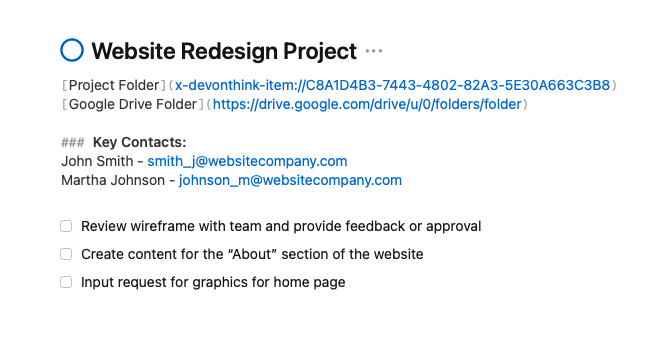
At the top of the notes section in Things for the project, I store a link to the DEVONthink folder for that project, so that I can quickly find notes, PDF files, and other resources related to the project. I use the app Hookmark to create links to the folders in DEVONthink. If I need to share files with others at work, I may have a Google Drive folder link for the project as well. Once a project is complete, I remove the “.” at the beginning of the folder title and move the folder into a project archive folder within either the Work Reference or Home Reference folders, depending on whether the project was a personal project or a work project.

Image of project in Things app for Mac, with links to project folders.
Here is an example project in Things with links to project folders in DEVONthink and Google Drive.

Reference Folders

In addition to project folders, reference folders play a crucial role in my filing system. I use reference folders for items that need to be kept on file, but which are not supporting actionable projects. For example, my Home Reference folder contain files like bank statements, receipts, bills, my kids’ school registration documents, and so on. The Work Reference folders contain files related to the various grants I manage, organizations that I interact with, data on the schools I support, key documents that I reference often, and more. Within the Home Reference and Work Reference folders, I have set up subfolders for these various documents, named by topic.

Notes

In addition to keeping PDFs, spreadsheets, and other documents in DEVONthink, I also keep my notes in DEVONthink. This allows me to have all relevant notes and documents related to a project or area of focus in one place.

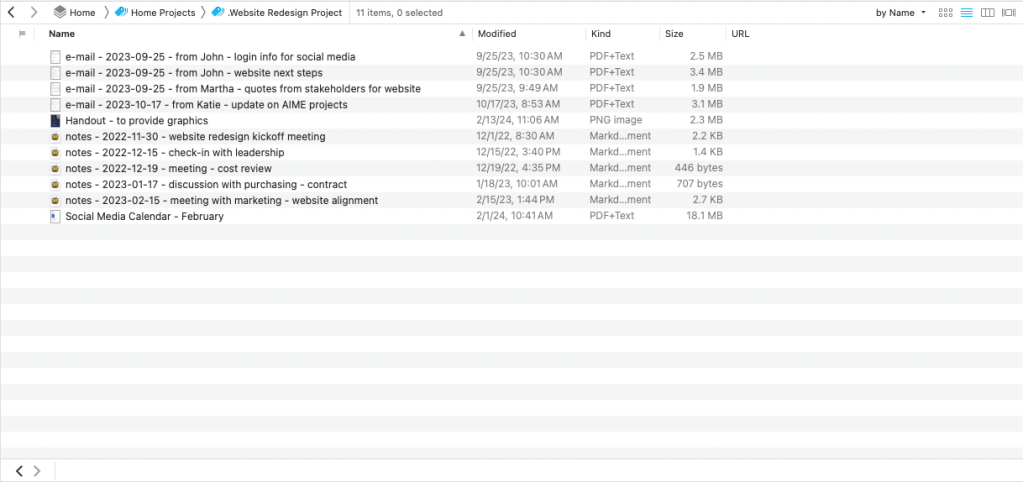
For notes, I use a specific naming convention so that they are easy to find within each project folder. Each set of notes is named “notes – yyyy-mm-dd – topic.” The notes then naturally appear together in order within the folder, making it easy to find them later when I need them. This naming convention ensures that notes are easily retrievable and are organized chronologically within each project folder. When I initially set up my notes, I flag them within DEVONthink to be sure that I capture any next actions from the notes when I process them daily. I also use consistent naming conventions for other types of documents to make them easy to find.

This screenshot shows how using a naming convention for emails, notes and other documents can help organize the files within a folder.

Paper Files

When it comes to paper files, I only keep documents that absolutely must be kept in a hard-copy format, such as those requiring a wet signature or original copies. Anything else is scanned and saved within DEVONthink. If I have to keep files for any length of time, I use manila folders and print labels for them using a P-touch Label Maker. With these labels I also use the same name as the project from my computer files and task manager. If there are paper documents that I need to keep on file for just a short time, I keep them in a folder at the front of my file cabinet titled “Reference” and indicate in the task or project note that the document is waiting there until I need it.

Using an Inbox

As files are coming in, I find it helpful to have an inbox for each area where I store documents, including for my computer filing system, DEVONthink notes, and physical paper. For example, if I just have a one or two page document, I use the scanning feature within the Files app on my my iPhone to scan these documents into an iCloud folder called “Inbox,” and those documents automatically show up in the same inbox folder on my Mac. When I use our Fujitsu ScanSnap scanner at work, the default folder is also the same inbox, and I have also set it up as my default downloads folder in my web browsers, Chrome and Safari. Each day, I set aside a few minutes to process the inbox and make sure that files are put in the right location. Having both digital and paper inboxes ensures that I do not miss important documents, and that documents are easily retrievable later.

As mentioned above, in DEVONthink, I initially flag any new notes for projects and process my flagged notes periodically to move any relevant tasks to my task manager. Once that is done, I remove the flag.

Conclusion

If you have not already done so, I recommend taking some time to develop a filing system with consistent naming conventions, as well as a process for organizing your files. Implementing consistent naming conventions and an organized process for managing your files can significantly streamline your workflow. If you work with a team, you can do the same thing using Google Drive, Dropbox, or your cloud file storage provider of choice. It is a great feeling to be able to find what you need quickly and easily when you are working on a project, and being organized can keep your day running smoothly. Please share your own experiences and tips in the comments section.

Managing Text Messages Effectively

Text messaging serves as an effective tool for communication. However, when it comes to capturing tasks and ensuring follow-up, text messaging can become problematic as it is easy to forget commitments made via text message. These messages often arrive while we are working on something else, and we may forget to respond. If we do decide to respond in the moment, then we risk losing focus on our current tasks and projects. Unlike email, text messages do not remain in an inbox for later review.

To address this, I use the Drafts app on my iPhone to manage messages I intend to reply to, as well as commitments I’ve made via text. Drafts is designed for quick text capture, opening a new blank document each time the app is launched. To track text messages and associated tasks, I either copy the entire message or just the relevant portion into Drafts.

When clearing my inboxes, I process the notes and messages accumulated in Drafts, including those from text messages and brief notes to myself. This process often involves responding to messages I wasn’t ready to address earlier or converting them into tasks in my task manager.

For messages requiring prompt replies when I’m unable to respond immediately, I quickly note the task “Respond to (person’s name)” in the Due app. This app helps manage time-sensitive tasks throughout the day. Once I finish the task I am focused on, I can return to the Due app and ensure that I respond to any time-sensitive messages.

Regardless of whether you use this particular method, it is worthwhile to develop a strategy for responding and following up on text messages as part of your productivity strategy, especially if text messages are a regular part of communication at work.

Meeting Preparation During Startup Routine

I find it helpful during my startup routine to prepare for each of the meetings I have on a given day. After I preview my schedule for the day, I prepare for each meeting in order.

If a meeting is related to an ongoing project, I open the project folder in DEVONthink. To make this quick and easy, I keep a link to each project’s folder in the notes section of Things for that project. I then activate a Keyboard Maestro script that does the following steps, which you can complete manually if you do not use Keyboard Maestro:

  1. Prompt me to provide the title of the notes. I use the naming format “notes – yyyy-mm-dd – title of notes” so that when I sort my files in alphabetical order in DEVONthink, I can see the notes for each project by date, separated from other files for that project. Take a look at the screenshot below to see a folder for an esports tournament I was recently planning. You can see that the notes end up organized together, with other documents related to the project in the same folder.
  2. Activate DEVONthink 3.
  3. Create a new markdown text document.
  4. Name the file with the title of my notes, based on the prompt in #1.
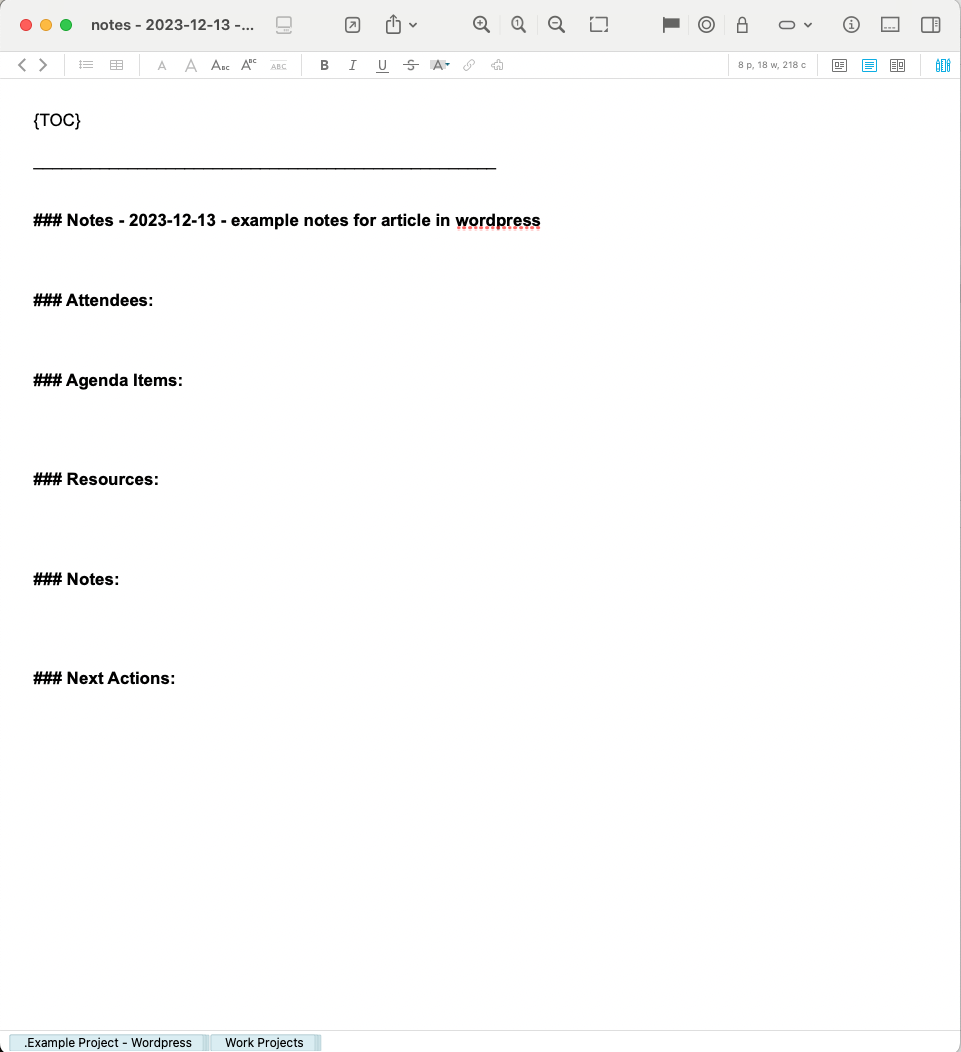
  5. Add the following to the body of my notes: table of contents (using the TOC markdown symbol, which automatically creates a table of contents based on the headings within a note), the title of the notes, and headings for attendees, agenda items, resources, and notes (see example below).
  6. Flag the note in DEVONthink. This helps me quickly find the notes during the day, and I do not remove the flag until I have processed any tasks the meeting generates.

Here is an example project folder showing how my notes files end up being organized so that they are separated from other documents in the project folder, when sorted by name.

A new set of DEVONthink notes.

For each meeting, I typically define the agenda items during my morning startup routine to ensure that I use the meeting time as productively as possible. I will share how I take notes in a future article.

Preparing for my meetings during my startup routine ensures that I am ready when a meeting begins, especially on those days when I have a lot of meetings, or when I am interrupted just before a meeting time. In addition, this helps ensure that I use the meeting time as effectively as possible.

Educational Discounts for Software Applications

If you are an educator, there are often educational discounts available for software purchases and subscriptions. One software subscription I find especially helpful is Setapp, which provides dozens of Mac and iOS apps through a monthly or annual subscription. I initially subscribed in order to get two key apps: CleanMyMac X and Ulysses. After subscribing to Setapp, I discovered that the service includes several apps that I normally purchase or subscribe to, including BetterTouchTool, Bartender, and OpenIn. I regularly discover helpful new apps on their service. At the time of this writing, Setapp offers a 50% discount to educators.

I also use an educational discount for Headspace, which actually makes their subscription free. Headspace is a mindfulness app that at the time of this writing costs $12.99 per month for a subscription, with a less expensive annual option. If you are thinking about getting into meditation or want to improve your practice, this is a great app to help you on your way.

One of my other favorites is Fantastical, a calendar app that makes creating new events very easy through natural language processing and has lots of other features. This app uses a subscription model as well, and for educators they offer a 20% discount. The subscription, called Flexibits Premium, includes Cardhop as well, which is an easy-to-use contact management application. Considering how much I rely on Fantastical, this is a worthwhile investment. To access the educational discount, you need to contact them to verify that you are an educator – see their FAQ page for more information.

If there are software programs you use on a regular basis, be sure to look for an educational discount. If you do not see a discount mentioned on the app’s website, try emailing the company, as they may not publicize the discount.

Helping Students Be Present While Preparing Them for Their Future

I recently finished the audiobook version of Four Thousand Weeks by Oliver Burkeman. This book is an interesting contrast to much of the literature on productivity, acting as a counterpoint to Getting Things Done, The Seven Habits of Highly Effective People, and other treasured productivity books. I enjoyed the book; Burkeman’s humor mixed with his strong background in philosophy make for an interesting and entertaining read. The premise of the book is that we each have about four thousand weeks to live, and there is no way we can accomplish everything we want to get done in that time. We must figure out how to make the best use of our time, rather than trying to cram in every possible accomplishment.

Something that struck me related to education is Burkeman’s discussion of how spending our time with a future-orientation means we are not living in the present. He bemoans the nonstop focus on productivity, where we have to constantly prepare for something in the future; where every activity, sometimes even our hobbies, needs to be productive or profitable in some way.

He brings this up in relation to education at one point, pointing out that the education system is constantly training students for the next stage. Kindergarten students are being prepared for elementary school, elementary students for junior high, high school students for college, college students for the workforce, and so on. His thesis is that we are training young people to have this future orientation, rather than letting them just be students and children.

In my role at my school district, I coordinate career education for junior high and high school students. Much of our focus is on the future of our students: career pathway programs to prepare students for their careers, dual enrollment classes to help students start earning early credit for college, internships, and more. We want to develop students’ 21st Century Skills, technical skills, each student’s sense of purpose, and more to prepare them for life. All of these efforts may lead students to develop the future-orientation Burkeman writes about in his book.

How can we prepare students for their futures while allowing them to enjoy their childhood? I am thankful that our district has trained many of our teachers in embedding mindfulness into the classroom, which can help ground students (and the teachers and staff who support them) in the present moment. If in our career education programs we can balance allowing students to explore potential careers while letting them be teenagers, we may be able to avoid causing undue stress or creating the future-orientation Burkeman discusses.

Burkeman reminds us that we do not want to spend our lives planning for the future or regretting the past. Instead, we should live in and enjoy the present. This leaves educators with the question: how can we help students be present for their childhood, yet still prepare them for their future?

Partnering Education and Industry to Prepare Students for the Workforce

Over the last ten years, my school district, the Anaheim Union High School District, has grown their career mentoring program, called AIME, in which we partner with local businesses, government agencies, and non-profits to provide career mentoring and internships to our students. We have had over 100 businesses participate in these efforts, and they enjoy working with our students and are regularly impressed with the caliber of the young people who will make up the workforce of tomorrow. Throughout our county there are several organizations working towards a similar mission: The CEO Leadership Alliance of Orange County, Vital Link, Orange County United Way, Big Brothers Big Sisters, and others. The Disneyland Resort has also made generous donations to AIME and other programs in the community to support workforce development.

While these efforts have made great progress, the number of students who participate in these work-based learning efforts is slim in comparison to the overall student population. In addition, the business community and the educational system often remain siloed, and work-based learning programs seem to be the exception rather than the rule. Educational entities, including the K12 system, community college, and universities, have their own standards, operating procedures, unions, and government requirements, making it challenging to collaborate. Legal requirements, risk management, and the bureaucracy of creating board-approved agreements can slow down the process of partnering, which leads to resistance in moving these relationships forward. All of this means slower progress towards meeting the needs of our students as well as the workforce needs of our local regions.

There are several promising practices that may lead us towards a stronger partnership with the business world and greater student participation in work-based learning. For example, our school district has implemented the Career Preparedness Systems Framework (CPSF) to align our educational goals with workforce readiness. This framework focuses our efforts around three main drivers: Youth Voice and Purpose, Technical Skills, and 21st Century Skills. By addressing 21st Century Skills in every classroom (communication, collaboration, critical thinking, creativity, and character) we are providing skills that we know will be important regardless of a student’s career choice. Our focus on the second driver, technical skills, not only ensures that students will have relevant skills they can cite on their resumes once they finish their education, it also helps teachers identify the skills in their curriculum that will lead to job-readiness and brings relevance to classroom learning. Finally, by allowing Youth Voice and Purpose to guide each student’s educational journey, we are avoiding tracking students towards particular pathways based on our perceptions of those students, and we are empowering students to become part of their communities to influence positive change. Our focus on career readiness does not just take place in Career Technical Education pathways, rather it is implemented across the curriculum.

We are in the early stages of implementing the CPSF, but believe it will be a positive step towards preparing our future workforce for success. Our business partners agree that drivers such as the 5 Cs are well worth focusing on, as they will help students succeed in any industry. In addition, UC Irvine has reported that our students who attend their university have higher average GPAs when compared with students from other districts, and are more likely to continue their education beyond the first year of college. We believe that our focus on transferrable career skills has helped students prepare for success in both their college and career pursuits.

Another promising example of successful partnerships between education and industry is that of apprenticeships. Whereas traditional apprenticeships were associated with building, manufacturing, and other trades, apprenticeships are now being implemented in high-tech fields, such as computer science and biotechnology. In an apprenticeship, the employer and educators agree on the skills that apprentices will learn, and the apprentice works for a wage while receiving instruction aligned with the apprentice’s experience in the workplace. If the student meets the standards of the apprenticeship, they are hired to work for the company. Our district, as well as the Orange County Department of Education, is working on implementing apprenticeships at the high school level.

It is time for education and industry to become true partners in preparing our future workforce. While CTE educators have long been working towards these partnerships, it is time to orient our entire educational system towards career and life readiness. I applaud the efforts of our local nonprofits and corporate partners as we work toward a common vision of workforce readiness. Considering that our students will spend most of their lives working in their careers, let’s focus on career preparedness as the end goal and let that drive our school and district improvement efforts to guide students towards purposeful, fulfilling lives.

My Startup Routine

Many productivity experts recommend a routine for getting started on your work each day. I have found this helpful in avoiding resistance and overcoming procrastination. I also find that using this routine helps me get into a state of flow more often, and short of that it definitely helps me focus on my work.

Here is my startup routine:

  1. Turn on my computer
  2. Start music (this helps me focus – I pick music I am familiar with that will not become a distraction)
  3. Preview schedule and Current Initiative (see article on Do It Tomorrow and Other Secrets of Time Management by Mark Forster for more information about the concept of a “Current Initiative”)
  4. Check deadlines on my calendar. If I have any deadlines, I add the associated tasks to the top of my task list.
  5. Review Today view in my task manager, Things
  6. Prepare for any meetings for the day
  7. Clear inboxes
  8. Pause and decide what’s next

Regarding item # 6, preparing for meetings, I set up a note-taking template for each meeting. I will post about this template in a future post. Being prepared for each meeting helps me be more productive during those meetings, and provides me with the resources and key links so I can jump right into the conversation. In addition, this prevents me from having to stop working ahead of each meeting to prepare.

I highly recommend developing a startup routine. Having a startup routine helps me in getting past any resistance to work and helps me quickly find focus.

Book Review: Do It Tomorrow and Other Secrets of Time Management by Mark Forster

I recently read Do It Tomorrow and Other Secrets of Time Management by Mark Forster. I came across this book as a suggested reading from Kourosh Dini after reading his book and going through his course Workflow Mastery.

Forster incorporates some of the aspects of Getting Things Done, but questions many aspects of modern time management, such as the idea of prioritization. With prioritization, Forster writes that we may never get to some of our projects. This rang true for me. Forster states that our daily work should amount to as much incoming work as we get in a day. He therefore suggests putting a one day buffer between tasks, so that any incoming work today gets added to tomorrow’s list. For today, if you are following his guidelines, you should be working on a closed list of items that amounts to a day’s work. The term closed list means you are not adding any additional items to the list, although of course you would need to make an exception for urgent items. He also addresses how to avoid urgent items in the in the book as well.

I have been using his strategies since I read the book a couple of months ago. I find that it is very well suited to using Things as my task manager, since a key feature of Things is the Today view. As I suspected, I immediately noticed that I have far more work to do in a day than could possibly be completed. That is one of the advantages of this strategy – Forster writes that organizing our day this way helps us to gauge our workload. When things are not going well, he suggests three questions: Am I working efficiently enough? Do I have too much work? Am I giving enough time to my work?

Considering my own situation, I do need to work on getting to a manageable workload. First and foremost, I am working on cleaning up my project list and considering what I can commit too. This is another concept I liked from Forster’s book – being committed to what we have agreed to do. I tend to have many projects and ideas that are in the “Someday/Maybe” category that are not moving forward. Rather than having this type of clutter in our systems, Forster suggests having one “Current Initiative.” For most people, clearing their backlog of projects will be their first Current Initiative, but once that is done, we can focus on those projects that are important, but have been lingering.

Reading this book also helped remind me of several key strategies for avoiding procrastination, which definitely plays a role in my overloaded to-do list. For example, Forster recommends doing a little bit on each project often, rather than long stretches of work while all of your other projects languish. I definitely recommend this book as a complement to Getting Things Done and other productivity books.