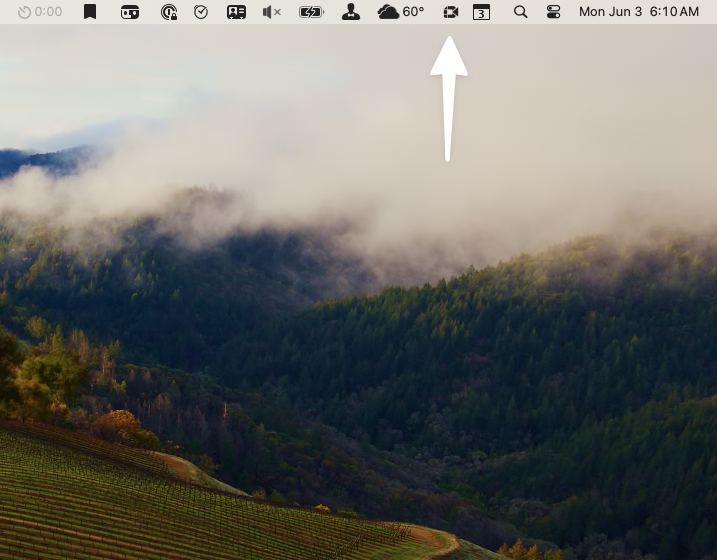
I use the app Fantastical as my primary calendar app, which has a feature where it will put an icon in your Mac’s menu bar with the meeting link for your next online meeting, whether that meeting uses Google Meet, Zoom, or another service. You simply click the icon in the menu bar on your Mac to join the meeting, rather than opening your calendar to find the link.
With most of my meetings taking place in Google Meet, I prefer to use Google’s Chrome browser rather than Safari, which is normally my default browser for other tasks. I have found that Chrome performs better with Google Meet, I am assuming because Google optimizes for Chrome. Since I prefer to keep Safari as my default browser, I previously would manually copy the links to Chrome in order to open my meetings in that browser.
In addition, when meeting via Zoom, the meeting links would send me to a Safari window that asked for permission to open the link in Zoom, rather than directly opening the Zoom app.
The app OpenIn solved both of these problems for me. Once it is set up, the app opens links in your preferred browser automatically based on your preferences. To get started, you set OpenIn as your default browser. In the app’s settings, you identify the types of links for which you want a specific browser to open, and then specify which browser or app should handle those links. For example, any Google Meet link that I click on will open in Chrome rather than Safari. By providing OpenIn with the relevant portion of the link, in this example any links with “meet.google.com,” you can then indicate which browser should be used to open each type of link.
The app OpenIn is available in Setapp if you are a subscriber, or you can purchase it in the Mac app store.

 Scott Reindl