A key element of productivity is the ability to quickly locate both project support and reference materials. When it is difficult to find key files, or when we cannot find them at all, work can become frustrating and we end up wasting time either searching for an important file of recreating it. Having a consistent filing system can be a big help in this area.
File Categorization and Storage
For project support material, I store nearly all of my documents electronically on my Mac in DEVONthink, and they are synced so that I can access them on my iPhone using DEVONthink To Go.
Within my filing system, I keep project files separated from reference files, leading to four main categories of files: Home Projects, Home Reference, Work Projects, and Work Reference. I organize these materials into two distinct DEVONthink databases, labeled “Home” and “Work,” to maintain separation between personal and professional files.
Project Folders
I name each project folder with the same name as its corresponding project name in Things, my task manager of choice, and include the timeframe of the project as well (Spring 2023, for example, or specific dates for events). For active projects, I add a “.” at the beginning of the folder title so that I know the title refers to an active project when I am searching for folders in DEVONthink. For example, if I am working on an internship program for students in the Fall, the project folder would be named “.Internship Program – Fall 2024.” For ongoing projects without a specific end date, I label these as ‘AOF’ for Area of Focus.” I use this naming convention for both work and personal projects.
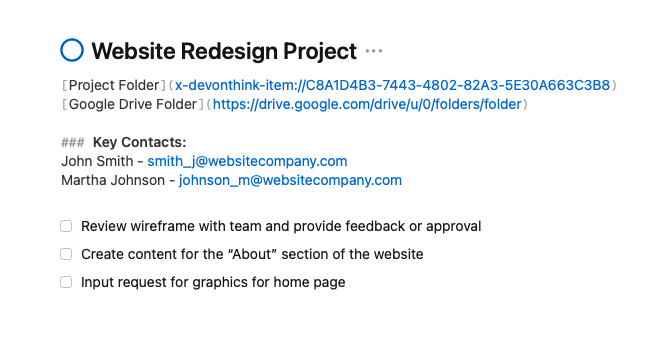
At the top of the notes section in Things for the project, I store a link to the DEVONthink folder for that project, so that I can quickly find notes, PDF files, and other resources related to the project. I use the app Hookmark to create links to the folders in DEVONthink. If I need to share files with others at work, I may have a Google Drive folder link for the project as well. Once a project is complete, I remove the “.” at the beginning of the folder title and move the folder into a project archive folder within either the Work Reference or Home Reference folders, depending on whether the project was a personal project or a work project.
Reference Folders
In addition to project folders, reference folders play a crucial role in my filing system. I use reference folders for items that need to be kept on file, but which are not supporting actionable projects. For example, my Home Reference folder contain files like bank statements, receipts, bills, my kids’ school registration documents, and so on. The Work Reference folders contain files related to the various grants I manage, organizations that I interact with, data on the schools I support, key documents that I reference often, and more. Within the Home Reference and Work Reference folders, I have set up subfolders for these various documents, named by topic.
Notes
In addition to keeping PDFs, spreadsheets, and other documents in DEVONthink, I also keep my notes in DEVONthink. This allows me to have all relevant notes and documents related to a project or area of focus in one place.
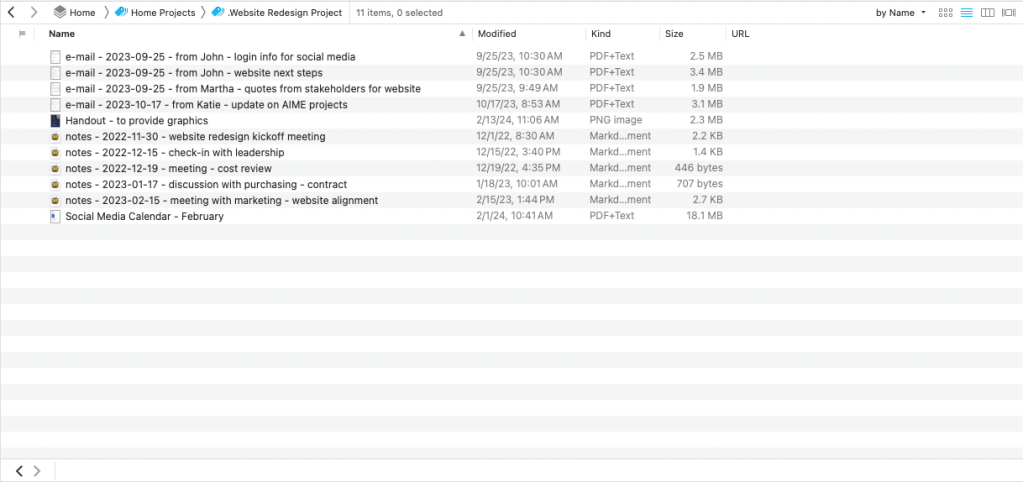
For notes, I use a specific naming convention so that they are easy to find within each project folder. Each set of notes is named “notes – yyyy-mm-dd – topic.” The notes then naturally appear together in order within the folder, making it easy to find them later when I need them. This naming convention ensures that notes are easily retrievable and are organized chronologically within each project folder. When I initially set up my notes, I flag them within DEVONthink to be sure that I capture any next actions from the notes when I process them daily. I also use consistent naming conventions for other types of documents to make them easy to find.
Paper Files
When it comes to paper files, I only keep documents that absolutely must be kept in a hard-copy format, such as those requiring a wet signature or original copies. Anything else is scanned and saved within DEVONthink. If I have to keep files for any length of time, I use manila folders and print labels for them using a P-touch Label Maker. With these labels I also use the same name as the project from my computer files and task manager. If there are paper documents that I need to keep on file for just a short time, I keep them in a folder at the front of my file cabinet titled “Reference” and indicate in the task or project note that the document is waiting there until I need it.
Using an Inbox
As files are coming in, I find it helpful to have an inbox for each area where I store documents, including for my computer filing system, DEVONthink notes, and physical paper. For example, if I just have a one or two page document, I use the scanning feature within the Files app on my my iPhone to scan these documents into an iCloud folder called “Inbox,” and those documents automatically show up in the same inbox folder on my Mac. When I use our Fujitsu ScanSnap scanner at work, the default folder is also the same inbox, and I have also set it up as my default downloads folder in my web browsers, Chrome and Safari. Each day, I set aside a few minutes to process the inbox and make sure that files are put in the right location. Having both digital and paper inboxes ensures that I do not miss important documents, and that documents are easily retrievable later.
As mentioned above, in DEVONthink, I initially flag any new notes for projects and process my flagged notes periodically to move any relevant tasks to my task manager. Once that is done, I remove the flag.
Conclusion
If you have not already done so, I recommend taking some time to develop a filing system with consistent naming conventions, as well as a process for organizing your files. Implementing consistent naming conventions and an organized process for managing your files can significantly streamline your workflow. If you work with a team, you can do the same thing using Google Drive, Dropbox, or your cloud file storage provider of choice. It is a great feeling to be able to find what you need quickly and easily when you are working on a project, and being organized can keep your day running smoothly. Please share your own experiences and tips in the comments section.

 Scott Reindl